Keep Product Videos Up to Date After Every Release: Find the Stale Ones, Then Re-record, Patch or Retire
To keep product videos up to date, tag each video with its version, map your library to the screens it shows, and read every release's notes against that map. Then re-record, patch, regenerate or retire each video the release breaks, on release day rather than after the tickets arrive.
To keep product videos up to date, tag every video with the product version it was recorded on, keep an inventory that maps each video to the screens and features it shows, and read each release's notes against that inventory before the release ships. Every video a release touches then gets one of four treatments: re-record it, patch it, regenerate it or retire it. Do this on release day and the library is never more than one version behind. Skip it and nobody can say which videos are wrong.
The week around a release is laid out on release week video formats. This page is the maintenance habit underneath it.
Why tutorial and training videos go out of date after every release
A release rarely breaks a video in an obvious way. A menu item is renamed, a setting moves tab, a wizard gains a step. The video still plays and still looks professional. The viewer follows it, reaches the screen that no longer matches, and stops.
A stale tutorial sends the viewer to support with a ticket that reads like a bug report. A stale onboarding video teaches a new user the old way on the day they are least able to tell. A stale partner training video is the worst case, because channel partners pass it on to their own customers long after the release.
Narration ages too. A voice that says "click Settings" over a button that now reads Preferences is wrong even when the picture is close.
How to tell which videos a release breaks
Watching the library after every release takes too long, and the reviewer drifts into skimming. Three pieces of record keeping make the check fast enough to happen.
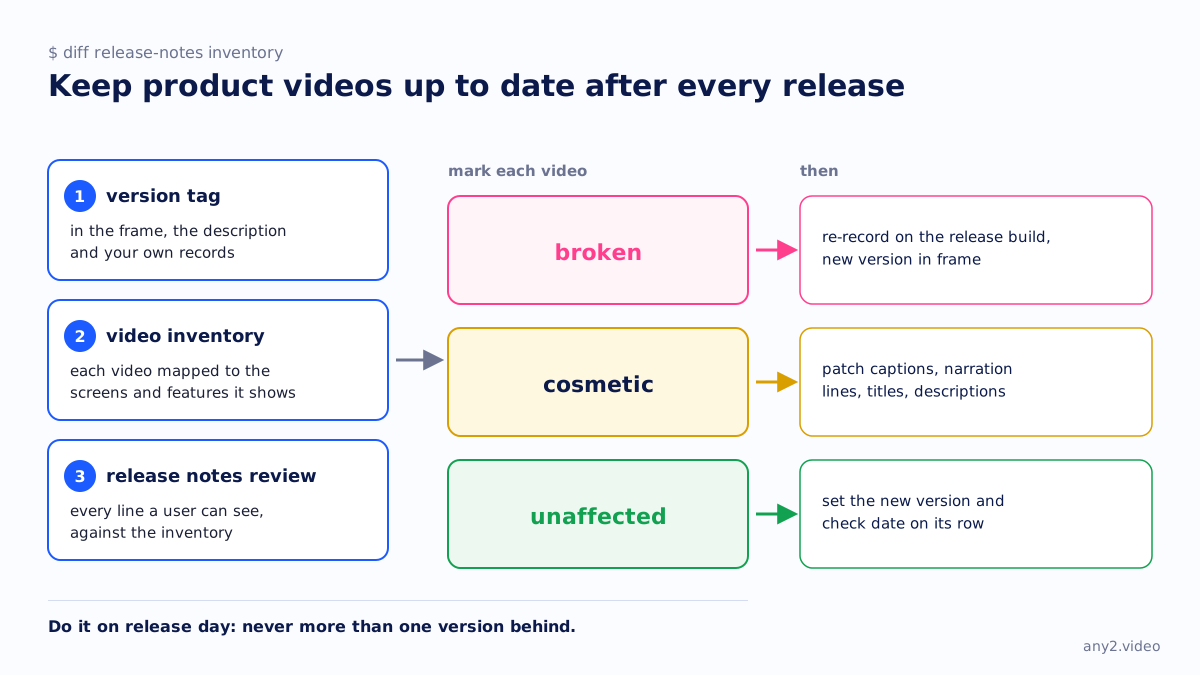
A version tag on every video
Put the version in the frame, in the description and in your own records. With it, "which videos predate 4.2?" becomes a filter rather than an afternoon. A missing version is the second of our software demo video mistakes.
A video inventory mapped to screens and features
A spreadsheet is enough: one row per video, with the columns that let you match it against a changelog.
| Column | What goes in it | Why it matters on release day |
|---|---|---|
| Video and URL | Where it is published and embedded | Every place it appears needs updating |
| Version recorded | The exact build, as shown in the product | Filters out videos newer than the change |
| Task | One sentence with a finish line | Tells you whether the outcome still exists |
| Screens and features shown | Menu paths, page names, dialogs, settings | This is the column you match against the release notes |
| Labels spoken or captioned | Button and menu names the narration uses | Catches renames that leave the picture almost right |
| Last checked | Date and result of the last check | Shows which videos nobody has looked at in a year |
A release notes review against the inventory
When the changelog freezes, search the screens and labels columns for every line a user can see. Renames, moved settings, removed options and new required steps break videos; performance fixes usually do not. Mark each match broken, cosmetic or unaffected. Release notes leave things out, so open the release build and look before trusting a "cosmetic".
Four ways to fix a stale video
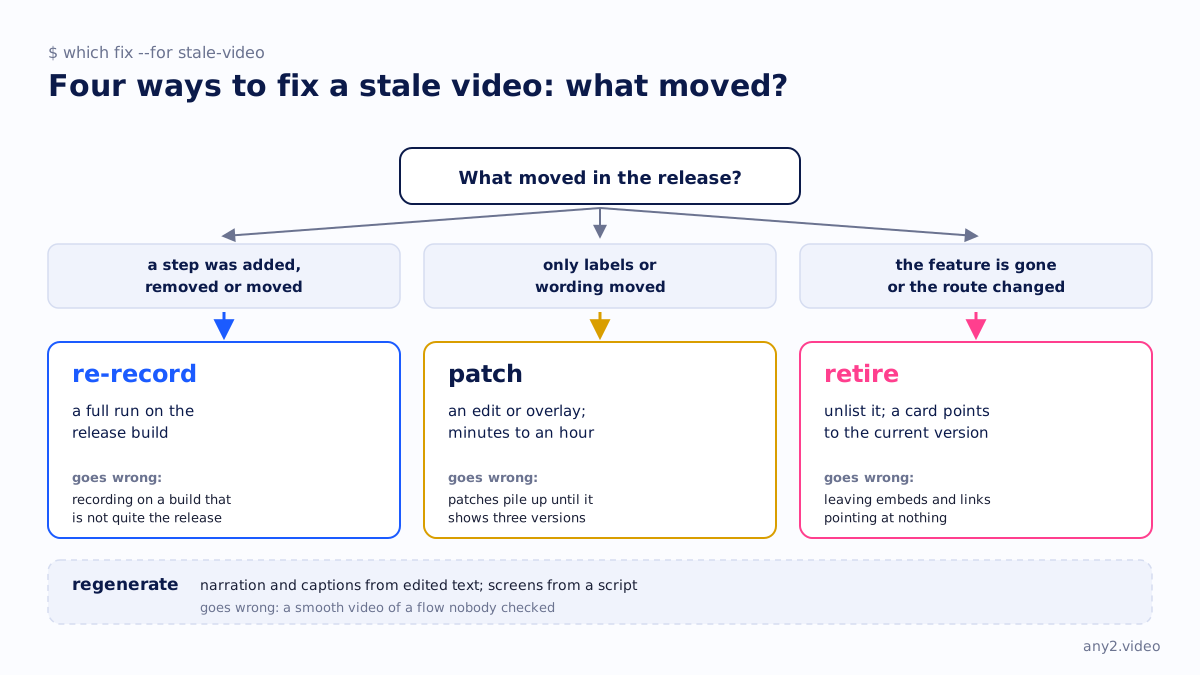
Not every affected video needs a new recording. It depends on what moved.
| Option | What it fixes | What it costs | Where it goes wrong |
|---|---|---|---|
| Re-record | Everything: steps, screens, narration, guide | A full run on the release build | Recording on a build that is not quite the release |
| Patch with an edit or overlay | A renamed label, a trimmed section, a pointer to a newer video | Minutes to an hour | Patches pile up until the video shows three versions at once |
| Regenerate | Narration and captions from edited text, screens from a script | Depends on the tool and how the video was made | A smooth video of a flow nobody checked |
| Retire | Removes the wrong instructions | Losing the video's views and links | Leaving the embeds and links pointing at nothing |
Platforms limit patching. On YouTube, checked 15 October 2026, you can trim a video in YouTube Studio without re-uploading and keep its URL, view count and comments, but changes saved since June 2025 cannot be reverted, and unedited videos over 100,000 views may not accept edits unless the channel is in the Partner Program. YouTube's help page on replacing a video says you cannot replace the file, because a new upload gets a new URL. What you can do is add cards, up to five per video, including one that links to another public video, so an old upload can point viewers at its replacement.
Retire more often than feels comfortable. If the feature is gone or the route changed entirely, a patched video misleads more than no video.
What "auto update a walkthrough when the UI changes" really means
Tools that promise this usually do one of two things. Some let you re-capture one step and swap it into an existing guide or video. Others replay a scripted flow against the product and render a new video with narration generated from text, so a renamed label means editing a line. Both save time on cosmetic changes. Our comparison of Scribe, Tango and Guidde shows how three step recorders handle a replaced step.
Neither knows which videos a release broke; someone still matches the changelog to the library. A scripted replay also breaks when the flow changes: a new required field, a step on another page, a permission the old account lacks. And a replay can complete on screen while the task fails underneath, rendered just as cleanly. Regeneration updates the picture. Only a check against the product's own evidence says the task still finishes.
A release-day routine
- When the changelog freezes, run the release notes review against the inventory and mark each video broken, cosmetic or unaffected.
- Before release, re-record the broken videos on the release build, with the new version in frame.
- Patch the cosmetic ones: captions, narration lines, titles and descriptions that name renamed labels.
- Retire videos for removed features, and point each one at its replacement with a card or a note.
- On release day, publish the replacements, update every embed listed in the inventory and set the new version and check date on each row.
- For a week after, watch support tickets for any video you missed.
A video marketing campaign for a product release puts this routine inside the full release week.
How we keep our walkthroughs current
Every verified walkthrough we deliver carries a version tag, a run date and a verification record, and includes a re-run on the next release. The same task is performed again on the new version in a clean environment, a person checks the result against the product's own evidence, and anything that failed on the new build stays in the log and in the video under Troubleshooting. The written guide is updated from the same run. Recording once and reusing it is the point of stop repeating the same demo; the re-run keeps the reuse honest.
How do I update a demo video after a UI change?
If only labels or wording moved, correct the captions, narration and title, and trim what no longer applies. If a step was added, removed or moved, re-record the task on the new version. Then update every page that embeds it.
Can product walkthrough videos update automatically when the UI changes?
Partly. Some tools re-capture a step or re-render a scripted flow, which handles cosmetic changes. They cannot tell you which videos a release broke, and a re-render can look correct while the task fails. A person still needs to check the result.
How often should training videos be updated?
On every release that changes something the video shows, not on a fixed schedule. Partner and onboarding videos come first, because their viewers cannot tell a video is out of date.
Should I delete outdated tutorial videos?
Unlist an outdated video rather than delete it when links point at it, and add a card that sends viewers to the current version. Customers still on the older release may need the old video, so delete only when nobody is.
Send us one task your current video gets wrong since the last release. We run it on the new version, keep what failed, and re-run it on the next release. The first sample is free.
$ get-sample →