
~/library / install-proxmox-ve-9-2-every-screen
Install Proxmox VE 9.2, every screen explained
Install Proxmox VE 9.2 from a blank machine to a working web interface, stopping on every installer screen, including the one that erases the disk and the one people get wrong and then cannot reach their server.
 7:50
7:50
$ cat guide.md
- Download the ISO and check it against the published checksum before writing it to a USB stick. A bad download fails late, partway through the install.
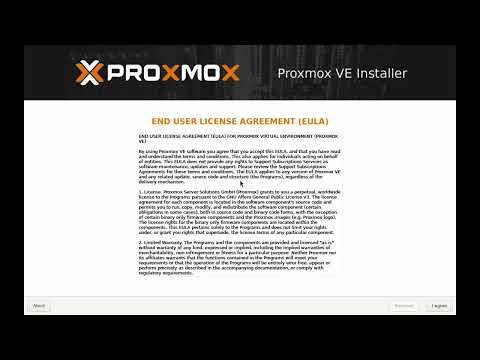
- Boot the installer and accept the licence. Proxmox VE is free and needs no subscription or licence key.
- Choose the target disk. The installer takes the whole disk, so you cannot dual boot or shrink an existing partition. On a single disk, pick ext4 unless you have a specific reason for ZFS or Btrfs.
- Set the country, timezone and keyboard layout, then the root password and an administrator email address.
- Fill in the network screen one field at a time: a hostname with a domain part, the static IP in CIDR form, the gateway and a DNS server. This screen decides whether you can reach the machine afterwards.
- Install, remove the USB stick and reboot. The console prints the URL to open.
- Open that URL on port 8006, log in as root with the password you set, and accept the self-signed certificate warning.
$ cat troubleshooting.log — what failed before the verified run
Guide, failed attempts and timestamps as markdown: run artifacts on GitHub, CC BY 4.0.
✖ attempt 1 Expecting to keep the existing operating system on the disk.
→ fix The installer takes the entire disk and cannot dual boot or resize a partition, so back up anything already on that disk first or use a second disk.
✖ attempt 2 Install completes but the web interface is unreachable.
→ fix The cause is almost always the network screen: an IP outside the LAN's range, a missing gateway or a wrong CIDR suffix. That is why the video goes through that screen one field at a time.
[01:23] operator download the ISO, verify the checksum
[02:46] operator choose the disk · ext4 vs ZFS vs Btrfs
[04:59] operator network screen, field by field
[06:04] operator install and reboot
[06:35] ✓ verified web interface reachable on the address set at install